Quick answer: Use
Link-onlyfor a list meant for specific people,Privatefor personal routines, andPubliconly when the list can safely appear in public Naver surfaces.
Naver Map saved lists are useful for sharing restaurants, meeting points, and travel routes in Korea. The important decision comes before the Share button: how much of the list should be visible, and for how long? This version focuses on privacy and post-sharing cleanup rather than repeating the same step-by-step tutorial published on Naver Blog.
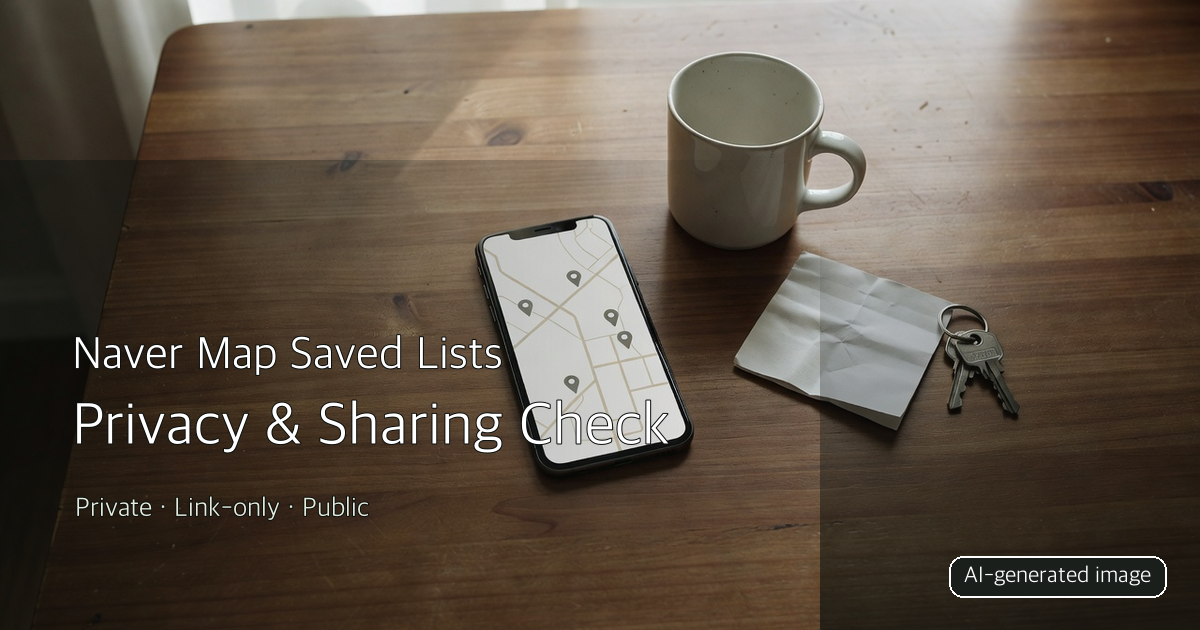
The cover is an AI-generated explanatory image, not a real Naver Map screen.
Choose the visibility level first
| Setting | Who can see it | Link sharing | Best use |
|---|---|---|---|
Private (비공개) |
Only you | No | Home, work, hospitals, and personal notes |
Link-only (일부 공개) |
People with the link | Yes | Family trips, restaurant shortlists, temporary group plans |
Public (전체 공개) |
Public-list and Naver-service visitors | Yes | A public neighborhood guide with no sensitive locations |
For a defined group, Link-only is usually the practical default. Public is not merely “anyone with the URL”; the list may also appear in your public list and other Naver services.
If the Share button is missing
Check whether the list is still Private. Naver’s official help says the list needs to be at least Link-only before it can be shared.
- Open
Saved(저장) in Naver Map. - Open the list’s more-options menu or edit screen.
- Change visibility to
Link-onlyorPublic. - Choose
Sharefrom the list or detail screen. - Send the generated link through your preferred messenger.
Labels and button positions may change after an app update. When the layout looks different, search for the visibility and sharing controls rather than relying on an old screenshot.
Privacy checklist before sending the link
Separate home and work locations
A list combining home, work, school, or a frequently visited clinic can expose a routine even without an address in the title. Keep those places in a private list.
Use a purpose-based title
Avoid names that reveal a person, recurring schedule, or exact reservation date. A title such as “Busan weekend candidates” is safer than one that names a family member and travel date.
Remove booking and contact details
Do not place reservation numbers, phone numbers, room details, or vehicle plates in the list description. Send necessary booking details separately through a private message.
Check the entire list, not just one place
Sharing normally exposes the list, not only the place that was open when you pressed Share. Review every saved location before sending the link.
Decide when sharing should end
After a trip or meeting, switch the list back to Private if continued access is unnecessary. Deleting the chat message alone does not change the list’s visibility.
Tell recipients how to keep the list
Recipients can open the link on mobile web even without the Naver Map app. On a computer it opens in Naver Map on the web. If they need it later, they can use Save list (리스트 저장) on the shared page.
Recommended setting by situation
| Situation | Recommended setting | Afterward |
|---|---|---|
| Family travel route | Link-only | Return to Private after the trip |
| Restaurant shortlist for friends | Link-only | Clean up or make Private after the meeting |
| Personal daily route | Private | Keep Private |
| Public local guide | Public | Keep only non-sensitive places |
| Plan containing booking details | Do not store those details in the list | Share separately |
What to check after sharing
Adding a new place later may expose it to people who still have the original link. The simplest long-term setup is to keep separate public and personal lists from the beginning.
For the shorter Korean button-by-button guide, see the Naver Blog version.
About the Author
The Life Mokcha editor reviews everyday apps and services from the user’s actual decision flow. The goal is not only to locate a button but also to identify visibility, privacy, and cleanup steps that matter after the task is complete.